Installing ActiveX Controls - Patient Charge Labels (Roll printer) Version
Contents
Overview
Important: ActiveX controls are being phased out of ERP applications as of Release 7.12. They are being replaced with a more modern technology.
ActiveX controls are mini-programs that do particular tasks for some features. When you open a feature that uses an ActiveX control (such as printing patient charge labels), The system automatically installs any ActiveX controls that are needed.
However, under some circumstances, the system cannot install the controls, and an IT Administrator must perform this activity:
- Your Windows login and password do not include Admin privileges so that you cannot download files.
Note: Windows Admin privileges are an operating system function, and are not the same as the Administrator role.
- Your Internet Explorer browser settings do not allow automatic downloads.
If either of these circumstances applies to you, speak to the IT staff for your organization. For users without Admin privileges, IT staff must download the ActiveX controls.
Instructions for IT staff on using the Loader File are below.
To install
ActiveX controls when working inside the application:
When ActiveX controls need to be installed, the system asks if you wish to install the controls. When you click "Yes", the system installs them (assuming that you have Admin privileges to your computer. See the Overview.)
Printing patient labels is an example of a feature that requires ActiveX controls to be installed.
- From the Materials Management main Contents, select Inventory > Item Inventory.
- Locate the item for which you need to print patient charge labels.
- Select Menu >Patient Charge Labels (Roll).
- Internet Explorer displays a message (Figure
1).
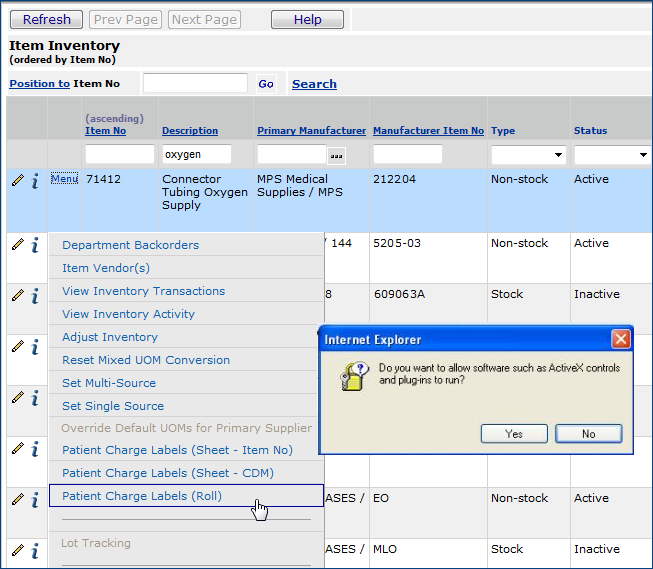
Figure 1 - Security Warning Panel for Installing Controls
Note: The reason for the message is to get your permission to install
updates to Microsoft ActiveX controls needed by the Patient Charge Label printing routine.
- Click Yes to give the system
permission to install the controls.
The installation process runs.
If you have problems with the install:
If you receive errors when you try to install the updated ActiveX
controls, you should contact your system administrator. Based on how your computer
and network are configured, several possibilities exist:
- Your computer is not set so that you have permission to install the controls; i.e., you do not have Admin privileges (as described in the Overview).
- Your system administrator should be able to set the permission and/or install the controls.
- Your Microsoft Internet Explorer options are not set correctly.
- See Instructions on how to make
the correct settings.
- The installation may need attention at the network level.
Installing ActiveX Controls from the Loader file:
The "loader" file is a system file that installs ActiveX controls. Your system administrator can install the controls using the loader file.
- From the Work in Administration main contents, click Administration > Active X Control Loader.
- Windows may ask you to verify that you wish to run the Loader file.
- Click Yes.
- A panel with information and instructions appears.
- Click "Click here to install the ActiveX controls"
- This file performs the installation.
Copyright © 2023 by Premier Inc. All rights reserved.